Absolutely. I’d position this as a practical citizen guide, with the main value being the consent/privacy checklist rather than just explaining DigiLocker.
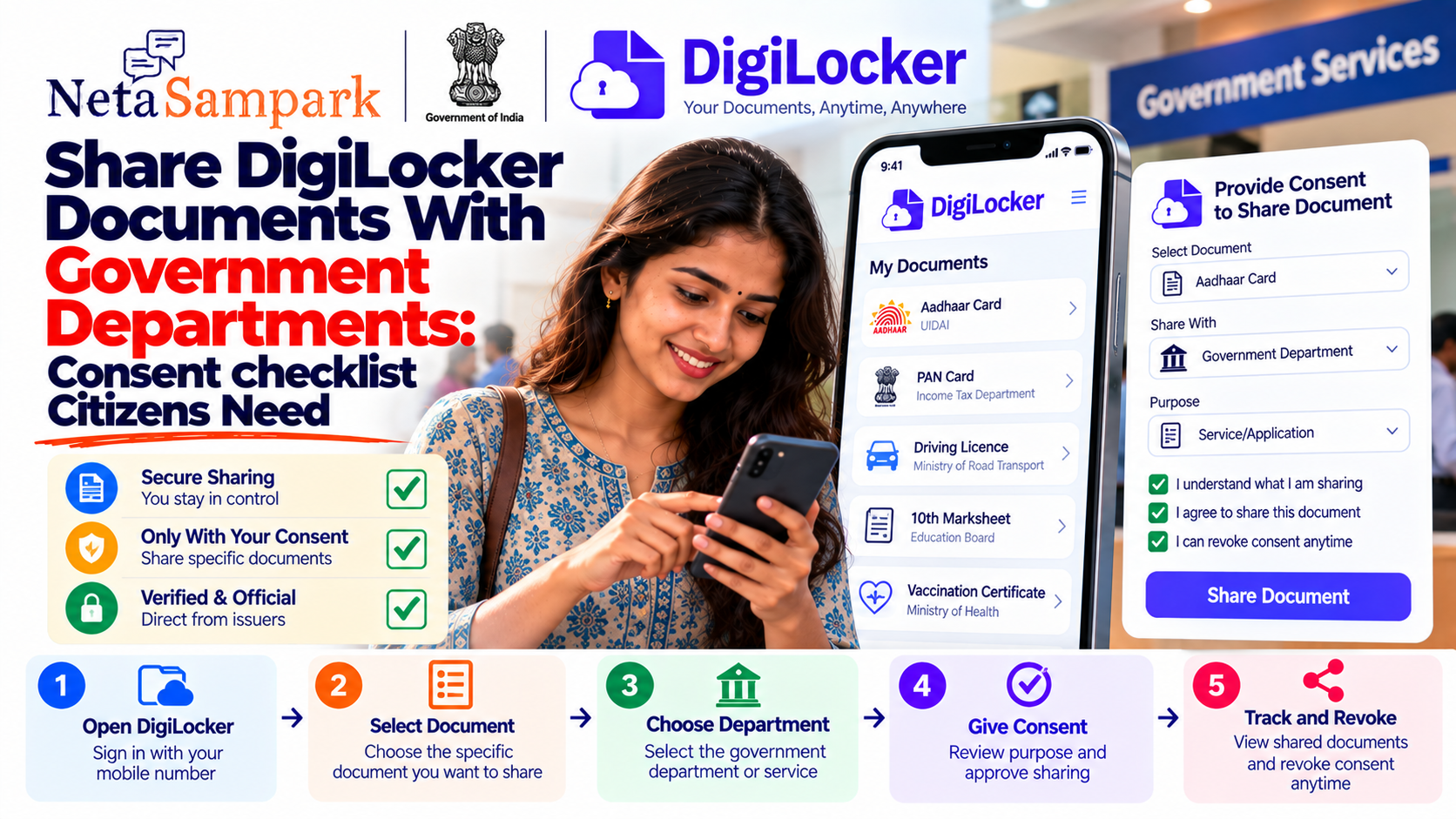
Share DigiLocker Documents With Government Departments: Consent Checklist Citizens NeedIf a government department asks you to provide a driving licence, marksheet, certificate, identity document or another record through DigiLocker, you may not need to print and submit a physical copy.
DigiLocker is designed to let citizens access, share and verify digital documents. Government departments and other authorised organisations can act as requesters, allowing documents to be retrieved or verified through DigiLocker with the citizen’s consent. (DigiLocker)
But before tapping “Allow” or approving a document request, it is worth checking exactly who is asking, what document is being requested and what you are consenting to.
Here is a simple checklist.
What Is DigiLocker Document Sharing?
DigiLocker is a Government of India digital document platform operated under the National e-Governance Division (NeGD), Ministry of Electronics & Information Technology (MeitY). It provides access to authentic digital documents issued by participating government departments and other organisations. (DigiLocker)
A government department can integrate with DigiLocker as a Requester. This allows it to request supporting documents for services such as applications, certificates, licences, admissions or other government processes.
The important point is that document access is consent-based. DigiLocker's terms state that users must explicitly consent before documents in their account are fetched or shared, and consent-related details are logged. (DigiLocker)
Issued Documents vs Uploaded Documents: Know the Difference
Before sharing anything, check which type of document you are dealing with.
1. Issued Documents
These are documents made available in DigiLocker directly by the original issuing authority.
Examples can include:
- Driving licence
- Vehicle registration certificate
- Educational certificates
- Marksheets
- Government-issued certificates
- Other records from participating issuers
DigiLocker says these documents are fetched from the issuing agency and have a unique document URI. (DigiLocker)
2. Uploaded Documents
These are files that you personally upload to your DigiLocker Drive.
They are different from documents issued directly by a government department.
This distinction matters because a government application may specifically require a verified/issued document rather than simply a scanned PDF that you uploaded yourself.
DigiLocker Consent Checklist Before You Share
Use this checklist whenever a government website or department asks you to connect your DigiLocker account.
1. Check the department or organisation
Before approving access, verify the name of the organisation requesting your document.
Ask:
- Is this the department I am actually applying to?
- Is the request connected to an application I started?
- Does the government website I am using identify this organisation?
- Did I initiate this document request?
Do not approve a request simply because it appears to be related to a government service.
2. Check exactly which document is requested
Read the consent screen carefully.
If the application needs a driving licence, for example, check that the request corresponds to the driving licence rather than approving access to unrelated documents.
Consent should match the purpose of the application.
3. Check why the document is being requested
Look at the purpose shown during the request.
For example:
“Fetch driving licence for transport service application”
is much easier to understand than an unexplained request for access to documents.
If the purpose does not make sense in relation to the service you are using, stop and verify it before proceeding.
4. Do not share documents just because someone sends you a link
Be careful with links received through:
- SMS
- Social media
- Unknown websites
DigiLocker itself warns against phishing, impersonation and attempts to obtain unauthorised access. (DigiLocker)
When possible, start from the official government service website and follow its DigiLocker integration rather than opening an unexpected document-sharing link.
5. Never share your OTP or login credentials
Your DigiLocker authentication details are for you.
A legitimate government employee or service representative should not need you to tell them your OTP.
If someone asks you to:
- Forward an OTP
- Share your DigiLocker password/PIN
- Send screenshots of authentication messages
- Give them remote access to your phone
stop the process and verify the request independently.
6. Check whether the document is actually required
Before giving access, look at the application's document requirements.
If the department only requires one particular certificate, there may be no reason to voluntarily provide unrelated documents.
DigiLocker's architecture is designed around access permissions and authorised document exchange, with sharing controlled through user consent. (DigiLocker)
7. Keep an eye on your DigiLocker Activity
DigiLocker provides an Activity section that records actions performed on the account, including document upload, download and sharing activity. (DigiLocker)
Check this if you are unsure whether a document was recently shared or accessed.
It can also be useful when investigating an unexpected activity notification.
8. Remember that sharing creates a record
DigiLocker says sharing and access activities are logged, including information such as timestamps and document details. (DigiLocker)
That provides an audit trail, but it is still important to approve only requests that you understand.
Are DigiLocker Documents Legally Valid?
DigiLocker states that documents issued or shared through the platform are legally equivalent to physical originals under the applicable Information Technology rules. (DigiLocker)
The platform also provides mechanisms for verifying documents against the issuing authority, including digital signatures and document URIs. (DigiLocker)
However, legal validity does not mean every department must accept every file for every purpose. The specific service may prescribe particular documents, formats or verification requirements.
If an application specifically asks for an issued DigiLocker document, use the document from the Issued Documents section where available rather than assuming that a personally uploaded scan is equivalent.
What Happens When You Give Consent?
The basic flow is generally:
Government service → DigiLocker request → You authenticate → Review request → Give consent → Document is fetched/shared → Activity is recorded
DigiLocker describes its ecosystem as connecting trusted issuers and requesters, with citizen consent used for document access. (DigiLocker)
The exact screens can vary depending on the government service and its DigiLocker integration.
Quick 10-Second Consent Check
Before pressing Allow, ask yourself:
WHO?
Is the requesting department genuine?
WHAT?
Which document is being requested?
WHY?
Does it match the government service I am using?
WHERE?
Did I reach this request through the official service?
OTP?
Am I keeping my OTP and login credentials private?
If all five checks make sense, you can proceed with the consent flow.
What If You Accidentally Shared the Wrong Document?
Don't ignore it.
First, check your DigiLocker Activity to understand what action took place. DigiLocker records sharing and other account activity. (DigiLocker)
Then:
- Check the government application's status.
- Contact the concerned department through its official support channel.
- Keep the application/reference number.
- If the activity appears unauthorised, contact DigiLocker support through its official support channel.
Avoid attempting to resolve an account-security issue through an unknown number or unofficial WhatsApp contact.
DigiLocker Sharing Checklist
CheckWhat to verifyOrganisationIs the requester the correct government department?ApplicationDid you actually start this service/application?DocumentIs the requested document necessary?PurposeDoes the reason match your application?SourceDid you reach DigiLocker through the official service?ConsentDid you read what you are approving?OTPHave you kept your OTP and credentials private?Document typeIs it an Issued Document or your own upload?ActivityCan you see the sharing/access activity afterwards?Suspicious requestHave you stopped and verified it independently?
The Bottom Line
DigiLocker can reduce the need to carry photocopies and repeatedly submit physical documents to government departments. Its system is built around verified digital documents, trusted requesters and citizen consent. (DigiLocker)
But “digital” does not mean “approve everything.”
Before sharing a DigiLocker document, take a few seconds to verify who is requesting it, what they need, why they need it and whether the request came through the genuine government service.
That small consent check can help prevent unnecessary document sharing and phishing attempts.