
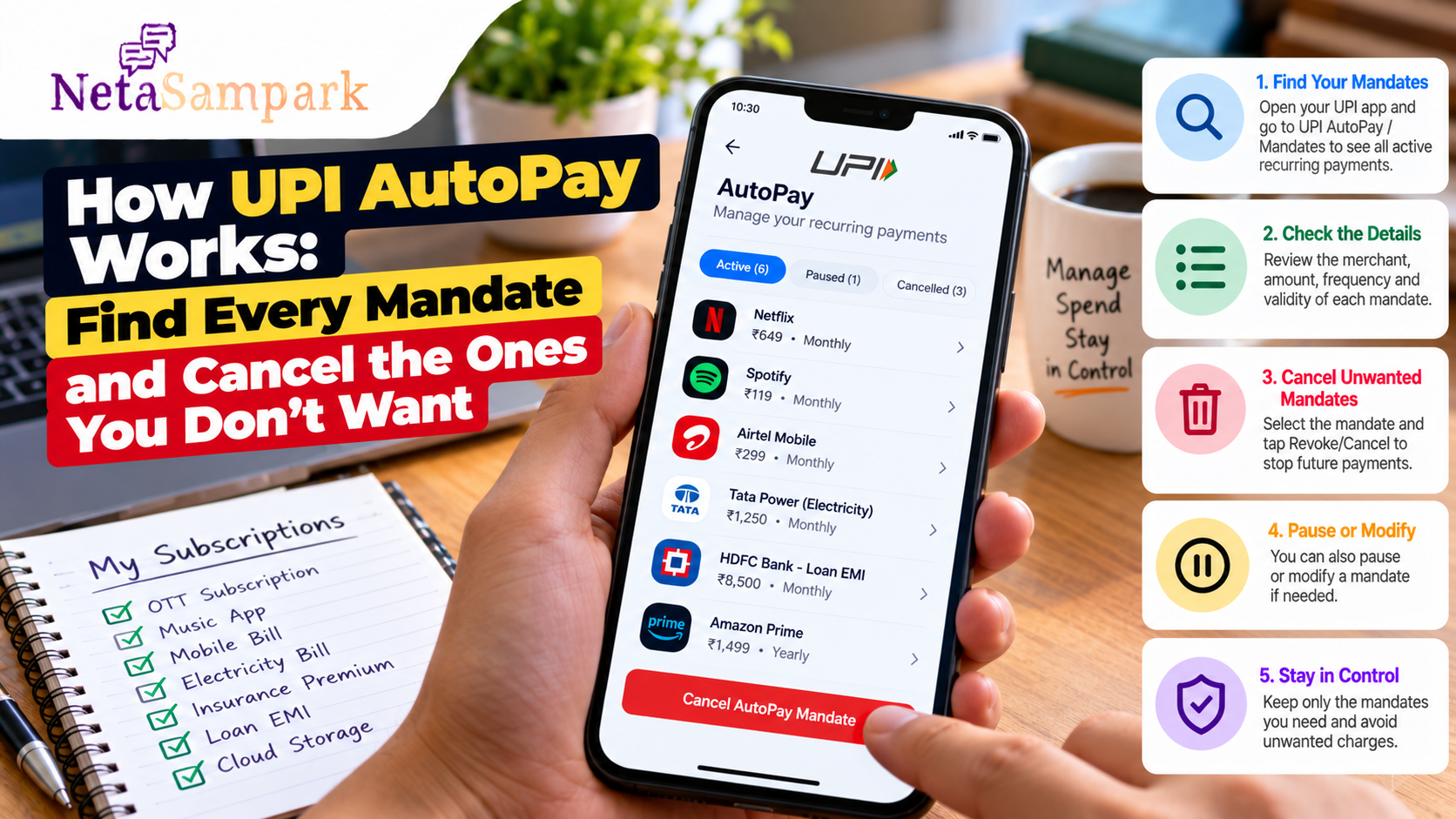
How UPI AutoPay Works: Find Every Mandate and Cancel the Ones You Don’t Want
A forgotten subscription can keep charging your bank account long after you stop using the service.
The payment may not appear as a new payment request each month because you previously authorised a UPI AutoPay mandate. That mandate acts as a standing instruction allowing a merchant to collect recurring payments according to the terms you approved.
The good news is that UPI's mandate framework provides tools to view, pause, modify and revoke AutoPay mandates. In October 2025, NPCI enhanced UPI AutoPay so users can view their active mandates in a unified view through participating UPI apps and manage their mandate lifecycle. NPCI
That makes it worth checking your UPI mandates periodically — particularly if you have accumulated subscriptions, insurance payments, EMIs, utility bills or other recurring services.
What is a UPI AutoPay mandate?
A UPI AutoPay mandate is an electronic standing instruction that you authorise through UPI for a recurring payment.
Instead of approving every individual payment manually, you approve the mandate once. Subsequent payments can then be processed according to the amount, frequency and validity period specified in the mandate.
NPCI's UPI AutoPay framework covers recurring payments such as:
- OTT and entertainment subscriptions
- Mobile bills
- Electricity bills
- Insurance
- Mutual funds
- Loan payments
- EMI payments
- Transit/metro payments
- Other recurring merchant payments
NPCI's original AutoPay launch described mandate frequencies including daily, weekly, fortnightly, monthly, quarterly, half-yearly and yearly arrangements. NPCI
The important change: you can view active mandates more easily
NPCI's October 2025 enhancement requires payer PSPs and UPI apps to provide lifecycle management for UPI AutoPay mandates, including viewing and porting, through the relevant Manage Bank Accounts or dedicated UPI AutoPay section. Existing functions such as revoke, pause and modify are also supported. NPCI
This is useful because your current UPI app may now be able to show mandates that were originally created through another UPI app, subject to the participating bank/PSP's implementation.
So if you have changed UPI apps, don't automatically assume your old mandates disappeared.
What is the difference between a payment and a mandate?
This distinction is important.
UPI payment
You initiate or approve a specific transaction.
UPI AutoPay mandate
You authorise a recurring payment arrangement that can result in future debits according to the mandate's conditions.
For example:
You subscribe to a service → approve AutoPay → mandate becomes active → scheduled payments are processed according to the mandate.
Cancelling the merchant's subscription and revoking the UPI mandate are related but can be different actions.
If you no longer want the service, check both.
Where can you find your UPI mandates?
The exact menu name depends on the UPI app and bank.
Look for sections such as:
- UPI AutoPay
- Mandates
- AutoPay
- Manage Bank Accounts
- Manage Mandates
- Recurring Payments
NPCI's current framework specifically requires payer PSPs and UPI apps to support mandate lifecycle management through the relevant Manage Bank Accounts or dedicated UPI AutoPay section. NPCI
If you cannot find the option, update the app and check its current help/support section.
How to check all your active mandates
Step 1: Open your UPI app
Open the UPI app linked to the bank account from which the recurring payment is being deducted.
Step 2: Go to the mandate/AutoPay section
Look under:
Profile → Bank Account → UPI AutoPay/Mandates
or a similar menu.
The exact navigation differs between apps.
Step 3: Select Active Mandates
Look for the Active section.
You may see details such as:
- Merchant name
- Mandate ID
- Amount or maximum amount
- Frequency
- Start date
- End date
- Debit account
- Current status
NPCI's AutoPay guidelines show mandate screens containing details such as the merchant/requester, mandate validity, frequency and amount per cycle. NPCI
Step 4: Review each mandate
Don't just look at the merchant name.
Check:
Who is being paid?
How much can be debited?
How often?
Until when?
Which bank account is being used?
This can help identify subscriptions you have forgotten about.
How to cancel a UPI AutoPay mandate
If you no longer want the recurring payment, open the relevant mandate and look for an option such as:
Revoke / Cancel / Stop AutoPay
The exact wording varies by UPI application.
NPCI's framework supports lifecycle operations including revoke, pause and modify, while payer-initiated AutoPay operations require UPI PIN authentication under the applicable guidelines. NPCI
Typical process
Open UPI AutoPay → Select mandate → Review details → Choose Revoke/Cancel → Authenticate → Confirm
After revocation, save the confirmation or screenshot for your records.
What does “Pause” mean?
A pause is different from cancellation.
If your UPI app offers the option, pause temporarily stops the mandate from operating while keeping the mandate available to resume later.
This can be useful if:
- You are temporarily not using a service.
- You want to stop payments for a period.
- You expect to resume the subscription later.
If you are certain you don't want the service anymore, consider whether revoking the mandate is more appropriate.
What does “Modify” mean?
Depending on the mandate and UPI app, you may be able to modify certain mandate parameters.
The available modification options depend on the mandate and the participating bank/PSP.
Don't assume that every field can be changed.
If the merchant's subscription itself needs to be cancelled, you may also need to cancel it directly with the merchant.
Cancelling AutoPay does not necessarily cancel the subscription
This is one of the biggest mistakes users make.
Suppose you have an OTT subscription.
You revoke its UPI AutoPay mandate.
That stops the UPI standing instruction, but it may not automatically cancel your subscription contract with the OTT provider.
The merchant may subsequently show the subscription as unpaid, suspended or requiring another payment method.
Therefore, if you want to completely stop the service:
1. Cancel the subscription with the merchant.
2. Check and revoke the corresponding UPI AutoPay mandate if you no longer want it active.
This creates a clearer record that you intended to stop both the service and recurring payment authorisation.
What if you don't recognise a mandate?
Don't approve or ignore it without checking.
Open the mandate details and look at:
- Merchant name
- Amount
- Mandate ID
- Creation date
- Validity period
- Bank account
- Payment frequency
Sometimes the merchant name shown in the payment system can differ from the consumer-facing brand name.
If you still don't recognise it, contact your bank or UPI app's official support channel.
If you believe a mandate was created without your authorisation, report the issue promptly and preserve the transaction/mandate details.
Don't share your UPI PIN
Your UPI PIN is used to authenticate certain UPI transactions and mandate operations.
Never tell your UPI PIN to a merchant, caller, delivery agent, bank representative or anyone claiming to help cancel AutoPay.
NPCI's UPI guidance also warns users not to share their UPI PIN. NPCI
A genuine support representative should not need you to disclose your UPI PIN.
What if someone sends you a “cancel AutoPay” payment request?
Be careful.
A person claiming to cancel a mandate may send you a UPI collect/payment request or ask you to enter your PIN.
Don't approve an unexpected payment request merely because someone says it will cancel a subscription.
Instead, open your UPI app yourself and manage the mandate from the app's official UPI AutoPay/Mandates section.
What if you changed your UPI app?
Changing UPI apps does not necessarily mean your recurring payment arrangements have disappeared.
NPCI's October 2025 enhancement allows users to view active UPI AutoPay mandates in an app of their choice, with mandate portability between participating UPI apps. NPCI
NPCI also specifies that mandate portability must be user-driven from the mandate details page, and a mandate can be ported only once in a rolling 90-day period under the enhanced framework. NPCI
So after switching apps, check the new app's mandate section.
A simple monthly AutoPay audit
You don't need to check your mandates every day.
A periodic review is enough for most users.
Open your UPI app and check:
| Check | What to look for |
|---|---|
| Merchant | Do you still use the service? |
| Amount | Is the amount expected? |
| Frequency | Monthly, quarterly, yearly etc. |
| Validity | Is the mandate still required? |
| Bank account | Is it linked to the account you intended? |
| Status | Active, paused or revoked? |
This can uncover old subscriptions and recurring payments you have forgotten.
Common recurring payments worth checking
Look particularly closely at:
- Streaming subscriptions
- Music subscriptions
- Cloud storage
- News subscriptions
- Fitness memberships
- Insurance premiums
- Loan/EMI payments
- Mutual fund mandates
- Utility bills
- Mobile bills
- FASTag-related recurring arrangements
- Education or software subscriptions
- Annual memberships
Not every recurring payment will necessarily use UPI AutoPay, so also review your bank statements and other payment methods.
What if a payment happens after you revoked the mandate?
First check the mandate status and transaction details.
Keep:
- Mandate ID
- Transaction ID
- Date and time
- Amount
- Merchant name
- Revocation confirmation
- Relevant screenshots
Then contact your UPI app/bank through its official support mechanism and raise a complaint if appropriate.
NPCI's UPI ecosystem also provides mechanisms for users to raise transaction-related complaints. NPCI
What if the merchant says the mandate is still active?
Check the mandate status in your UPI app.
If the app shows it as revoked but the merchant continues to claim that it is active, preserve the revocation confirmation and contact the merchant and your bank/UPI app.
If the app shows the mandate as active, complete the revoke process through the official mandate-management interface.
Don't confuse UPI AutoPay with every UPI recurring payment
UPI is used for many types of payment arrangements.
A recurring payment may instead involve:
- Card standing instructions
- Net-banking mandates
- NACH/e-mandates
- Bank standing instructions
- Merchant-specific payment arrangements
So if you are auditing your finances, checking UPI AutoPay alone may not show every recurring debit from your bank account.
Review your bank statement as well.
UPI AutoPay safety checklist
Before approving a new mandate:
- Check the merchant name
- Check the amount or maximum amount
- Check payment frequency
- Check start and end dates
- Confirm the bank account
- Read the mandate details
- Approve only if you recognise the request
- Never share your UPI PIN
For existing mandates:
- Review active mandates periodically
- Revoke unused mandates
- Pause mandates you temporarily don't need
- Cancel the underlying subscription separately where applicable
- Save revocation confirmations
- Check bank statements for unexpected debits
A five-minute UPI AutoPay cleanup
You can do a quick review today:
1. Open your UPI app
2. Find UPI AutoPay/Mandates
3. Open Active Mandates
4. Check every merchant, amount and frequency
5. Revoke mandates you no longer need
Then check your bank statement for recurring payments that may be using a different payment mechanism.
What NPCI's newer mandate system means for users
The October 2025 UPI AutoPay enhancement is particularly useful for people who use multiple UPI apps.
Instead of treating a mandate as something permanently tied to the app where it was originally created, the enhanced framework supports viewing active mandates across participating UPI apps and managing their lifecycle, including revocation, pausing, modification and portability. NPCI
NPCI has also introduced a UPI HELP pilot that includes a unified view of active mandates and can direct users to participating UPI apps for actions such as pause, resume and revoke. NPCI
Availability of particular features can depend on the participating bank, PSP and app.
Bottom line
UPI AutoPay is designed to make recurring payments convenient, but an old mandate can continue to authorise payments you no longer want.
The basic cleanup process is:
Open your UPI app → Find UPI AutoPay/Mandates → Review Active mandates → Check merchant, amount and frequency → Revoke unwanted mandates → Cancel the underlying subscription separately where necessary.
And remember: never share your UPI PIN with anyone who claims they need it to cancel AutoPay.
NPCI's current framework provides users with mandate-management functions including viewing, pausing, modifying and revoking eligible UPI AutoPay mandates. NPCI